

'%3E%3Cpath d='M0,0 v30 h60 v-30 z' fill='%23012169'/%3E%3Cpath d='M0,0 L60,30 M60,0 L0,30' stroke='%23fff' stroke-width='6'/%3E%3Cpath d='M0,0 L60,30 M60,0 L0,30' clip-path='url(%23t)' stroke='%23C8102E' stroke-width='4'/%3E%3Cpath d='M30,0 v30 M0,15 h60' stroke='%23fff' stroke-width='10'/%3E%3Cpath d='M30,0 v30 M0,15 h60' stroke='%23C8102E' stroke-width='6'/%3E%3C/g%3E%3C/svg%3E)

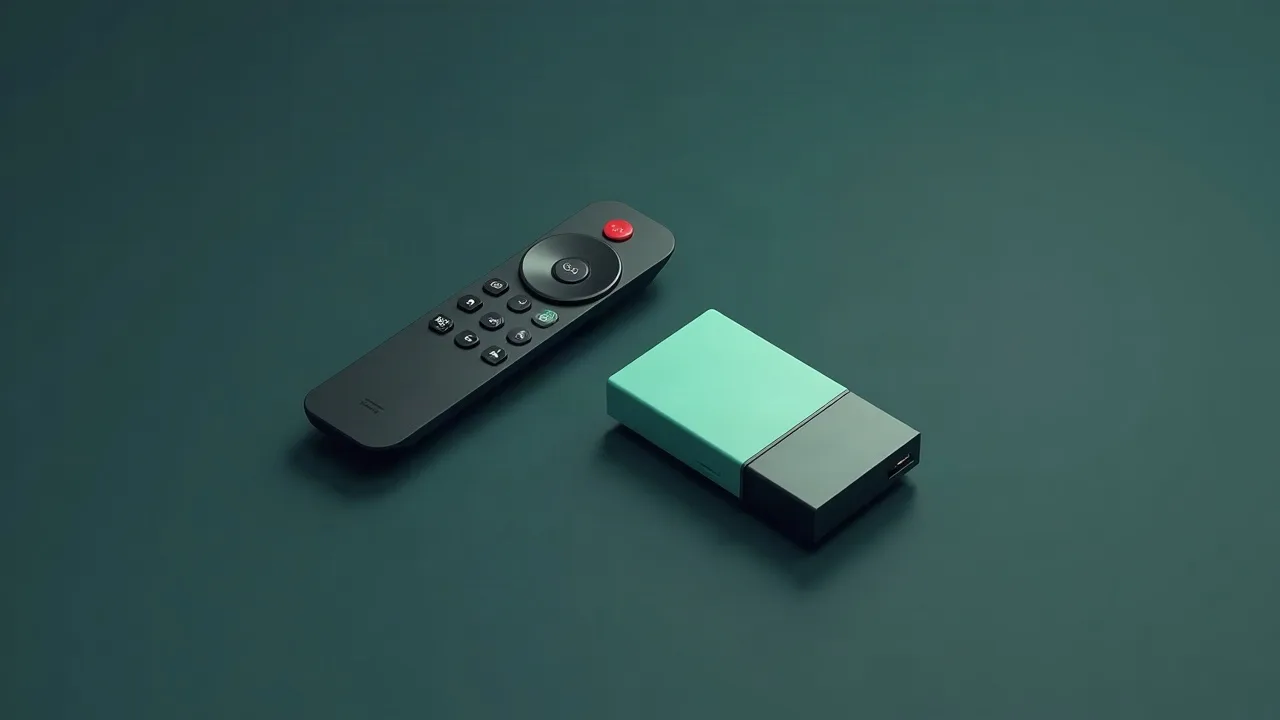
Raduga TV remains one of the most sought-after sources of satellite content among Russian-speaking viewers, and sharing is the most accessible way to watch encrypted channels without purchasing an official access card. In 2026, the connection scheme has changed due to updates in protection protocols and the emergence of new servers, so old instructions from 2023-2024 often do not work. Below is a current breakdown of how to set up sharing from scratch, what equipment is needed, and what to pay attention to when choosing a line provider.
What is sharing and why is it needed for Raduga TV
Sharing (card sharing) is a technology for transmitting decryption keys from one physical access card to several receivers via a local network or the internet. Instead of buying a separate card for each receiver, the user connects to a server that broadcasts control words (ECM/EMM) in real-time. This is especially relevant for Raduga TV because the official subscription is tied to specific equipment, while the sharing server allows opening a package of channels on several TV set-top boxes, satellite tuners, or even applications on a smartphone simultaneously.
The difference between sharing and IPTV subscription
These two concepts are often confused. IPTV is a ready-made video stream that arrives already decrypted via an M3U playlist. Sharing, on the other hand, only transmits keys, while the receiver gets the signal directly from the satellite through the dish. Because of this, sharing requires a satellite antenna and a compatible receiver, while IPTV works on any device with internet access. For Raduga TV, both options exist in parallel, but sharing provides a more stable picture without buffering, as it does not depend on the provider's speed for the video stream itself.
What is needed for setup in 2026
Before starting the setup, gather the following kit:
- Satellite receiver with support for CCcam 2.3.x or higher (for example, models based on E2 — Dreambox, VU+, Zgemma, as well as Mag set-top boxes with emulators)
- Stable internet connection of at least 10 Mbps for receiving C-lines
- Active C-line (credentials in the form of user/pass/host/port) from a verified Raduga TV sharing provider
- Configured dish aimed at the satellite broadcasting Raduga TV (Eutelsat 36B/36C for most packages in 2026)
- When using an Android set-top box — OScam Reader or CCcam Client application version 2.9 or higher
Checking receiver compatibility
Not all models work equally well with the updated Raduga TV protocol. For example, old firmware versions of Openbox X5 and Mecool KI Pro struggle with multiple ECM requests when viewing in 4K format, causing the picture to freeze for 2-3 seconds periodically. If you have such a device, it is recommended to update the firmware to the latest version via the manufacturer's official website or install the custom firmware OpenATV 7.3, which is better optimized for the current requirements of sharing servers.
Step-by-step CCcam setup for Raduga TV
Step 1. Obtaining the C-line
Contact the sharing provider and obtain the connection details. They usually look like this:
C: 185.xx.xx.xx 12000 login2026 pass9K3f
Note the port — in 2026, many Raduga TV servers switched from the classic port 12000 to the range 15000-16000 to reduce load and bypass blocks from telecom operators.
Step 2. Uploading the configuration file
On the receiver, open the menuPlugins → CCcam → Configuration and insert the obtained line into the fileCCcam.cfg. For Android set-top boxes, the file is located at/data/data/com.cccam.client/config/CCcam.cfg. After saving, restart the emulator through the application menu — a full device restart is not required, but it speeds up the application of settings in about 90% of cases.
Step 3. Setting up channels and Softcam Key
Download the current SoftCam.Key file with keys for the Raduga TV package — in 2026, keys are updated on average every 10-14 days due to changes in the Irdeto 2 and Conax encryption algorithms used by the provider. The file needs to be replaced in the folder/etc/tuxbox/config/ (for Enigma2) or in the corresponding directory of the emulator for Android. An outdated key file is the most common reason why some channels open while others show the error "no signal" or "channel is encrypted."
Step 4. Checking ECM reception
After setup, open any channel from the package, for example, "KinoPremiera HD" or "Sport Plus," and check the ECM Time indicator through the receiver's status menu. A value of up to 300 ms indicates good line quality, from 300 to 800 ms indicates acceptable quality but with possible freezes when switching channels, and above 1000 ms usually means an overloaded server, which should be contacted for a line replacement.
Setting up via OSCam as an alternative to CCcam
For more flexible setup in 2026, many users are switching to OSCam, which works better with multiple lines simultaneously and allows setting up a backup server in case the main one fails. In the fileoscam.server a block is added:
[reader]
This configuration allows you to set a second line with priority group = 2, which will automatically connect when the main one is interrupted, which is critical for watching live broadcasts of sports events, where even a 10-second connection drop means missing a goal or a decisive moment of the match.
Setting up sharing on Smart TV and mobile devices
Smart TV users based on Android TV (Xiaomi, Sony, TCL) can install the IPTV Extreme or SS IPTV application with built-in CCcam client support. In the application settings, the same set of data is specified: server address, port, login, and password. The difference is that mobile versions of clients often experience problems with the router's NAT table during prolonged inactivity — it is recommended to enable keep-alive for UDP packets in the router settings with an interval of 60 seconds, otherwise, the connection to the sharing server will drop after 5–7 minutes of inactivity.
Frequent problems and their solutions
The channel shows "waiting for key"
This usually means that the line provider is temporarily overloaded or conducting technical work on the server. Check the status through your service provider's Telegram channel — most Raduga TV providers publish notifications about planned work in advance, usually 2–3 hours ahead.
Desynchronization of sound and picture
This problem occurs more often on budget Android set-top boxes with the Amlogic S905W processor due to a weak decoder when watching 4K channels via sharing. The solution is to lower the stream quality to Full HD in the channel settings or update the set-top box firmware to a version that supports HEVC hardware acceleration.
Periodic line drops
If the line drops every 20–30 minutes at the same time, the problem is almost always due to a limit on the number of simultaneous connections on your plan. Raduga TV providers usually sell lines with a limit of 1 to 4 simultaneous connections, and exceeding this limit automatically disconnects the oldest session.
Security and legal aspects of using sharing
It is important to understand that using sharing servers to access paid content without an official subscription violates the terms of use of most broadcasters and may contradict copyright laws in your jurisdiction. Before setting up sharing, clarify the legal status of such services in your country and consider an official Raduga TV subscription as the main legal option for viewing. Additionally, it is advisable to use a VPN connection when connecting to sharing servers — this reduces the risk of IP address blocking by the internet provider and protects transmitted data from interception on unsecured networks.
How to choose a reliable line provider in 2026
When choosing a C-line provider, pay attention to three parameters: time in the market (providers with more than two years of experience are less likely to disappear along with the paid subscription), availability of a trial period of 24–48 hours, and reviews on specialized satellite television forums. The average cost of a monthly line for the Raduga TV package in 2026 is from 250 to 450 rubles for one connection, while lines supporting up to four devices simultaneously are more expensive — averaging 700–900 rubles per month.
Setting up sharing for Raduga TV requires attention at every stage — from choosing compatible equipment to regularly updating key files. By following all the steps described above, the user gains stable access to the channel package without the need to purchase multiple official access cards for different devices in the home.
Practical checklist for smooth viewing
Even the best CCCam or OSCam line needs two or three simple preparations. Update your receiver firmware, reset the ECM cache once a week and keep 15–20% free space on the USB stick or internal flash so that the reader can store keys without delays.
When tuning a dish, aim for MER/BER reserve: a two‑degree offset or a loose F‑connector often causes the “freezing” that users blame on cardsharing. Keep a short patch cord to test alternative routers, and save two profiles in OSCam — one for TCP, one for UDP — so you can switch instantly if your ISP starts filtering a protocol.
Utgard.tv monitors each hub 24/7, but you can speed up diagnostics by keeping a short log of your receiver actions. Note the time when you changed the channel, which CAID was active and whether you used Wi‑Fi or Ethernet. This tiny “journal” helps engineers reproduce your environment in the lab and return with a solution in minutes instead of hours.
- Keep two line slots enabled: if the first server hits a maintenance window, the second one instantly takes over without re-entering credentials.
- Run a monthly speed and latency test. Stable 1–2 Mbps with ping <80 ms is enough for SD/HD, but if jitter exceeds 20 ms, switch the router to wired mode.
- Save the Utgard.tv status page and Telegram bot @utgard_sharing_bot to bookmarks — they publish maintenance notices before SEMrush or uptime monitors raise alerts.